Troubleshooting Overdrive Québec's launcher and American Truck Simulator server
The Overdrive launcher won't open, Windows blocks it, or the server doesn't show up in American Truck Simulator? This page fixes the known cases, one by one: SmartScreen, antivirus, a blocked file, the game version, the large-convoy setting, the mods, the Steam sign-in and the password. Each fix starts from the message the launcher really shows. If nothing works, write to us on the Discord.
Pick your problem: we show one solution at a time. Not fixed? Go to the next one. These are the same solutions as the assistant of the Discord help channel (besoin-d-aide). The launcher and the Discord are in French, so their buttons and messages are written as they appear, in French, with a translation in brackets.
0 results
Without JavaScript, the search does not filter: the whole list is shown.
First steps: from zero to your first delivery
New here? Everything is step by step: the whole path, downloading the launcher, opening it, signing in, joining the Discord, linking your account, getting the mods and hitting the road.
I’m starting from zero: the whole path, in order
You just arrived and you don’t know where to start to drive on the Overdrive server.
The solution : The 11 steps, from installation to the convoy
The game: American Truck Simulator must be installed on Steam, at the server’s version (the launcher doesn’t install it). Not yet? Install it from Steam first.
Download the launcher: on the site’s Download page, the Télécharger (“Download”) button. Details: the « Premiers pas » (“First steps”) button › « Télécharger le lanceur » (“Download the launcher”).
Open the launcher: put the file in Documents, double-click it, not as administrator. Does Windows stop it? « Le lanceur » (“The launcher”) button › « Windows bloque le lanceur » (“Windows blocks the launcher”). Screen details: « Je viens d’ouvrir le lanceur » (“I just opened the launcher”).
Steam: top right of the launcher, the SE CONNECTER AVEC STEAM (“Sign in with Steam”) button. You should see your Steam name with “Connecté à la communauté” (“Connected to the community”). Details: « Me connecter avec Steam » (“Sign in with Steam”).
Discord: the REJOINDRE LE DISCORD (“Join the Discord”) button (top left), then take the American Truck role in #rôles. Details: « Rejoindre le Discord » (“Join the Discord”).
Link the two: in the launcher, the Récompenses (“Rewards”) button › LIER MON DISCORD (“Link my Discord”) › Copier le code (“Copy the code”), then in #rôles, the Lier mon compte Overdrive (“Link my Overdrive account”) button, and paste the code. Details: « Lier mon Discord » (“Link my Discord”).
The mods: game closed, left column, RONDE DE SÉCURITÉ (the safety check): on every red line, Télécharger (“Download”) or Corriger (“Fix”), then Revérifier (“Check again”) until everything is green. Details: « Avoir les mods » (“Getting the mods”).
Turn the mods on in the game: in the main menu, open the mod manager, turn on the “Overdrive Québec — …” modules and move them to the very top, Météo (Weather) first. Details: the « Le mod Overdrive » (“The Overdrive mod”) button.
The server: server card › Copier (“Copy”). In the game: Convoy mode, session browser, Ctrl+V, pick the server, enter the password. Details: the « Trouver le serveur » (“Find the server”) button.
Fines: in the game’s options, turn on fines. Without them there is no licence and no leaderboard. Details: the « Options à activer » (“Options to turn on”) button › « Active les amendes » (“Turn on fines”).
Your first delivery: take a contract and drive. To follow your trucker day, open LOGBOOK. Details: « Ma première livraison » (“My first delivery”).
Stuck on a step? Click “Retour aux sujets” (“Back to topics”): every step has its own topic in « Premiers pas » or in the button named.
Still stuck? On the Discord, in the help channel (besoin-d-aide), pick your topic on the panel, then « Écrire au staff »: your request goes with the solutions you already tried, and a staff member answers you in a private thread.
Where do I download the launcher, and how do I install it?
The launcher is a single .exe file, free, for Windows 10 and 11.
Solution 1 of 2 : Download and open the launcher
You need: Windows 10 or 11, American Truck Simulator on Steam (at the server’s version) and a Steam account to sign in.
Go to the site’s Télécharger (Download) page (the “Download page” button below) and click the Télécharger button: it’s a single .exe file, free.
Your browser puts it in your Downloads folder. Move it to Documents (not Program Files: the launcher updates itself, so it must be able to write).
Double-click the file. Open it normally, not as administrator.
Does Windows show “Windows a protégé votre ordinateur” (“Windows protected your PC”)? That’s normal for a new, unsigned program: click Informations complémentaires (“More info”), then Exécuter quand même (“Run anyway”) (details: « Le lanceur » button › « Windows bloque le lanceur »).
You should see a welcome screen, then the launcher window with RONDE DE SÉCURITÉ (the safety check) on the left. No window? Check whether your antivirus deleted the file (« L’antivirus bloque le lanceur », “The antivirus blocks the launcher”).
Still stuck? On the Discord, in the help channel (besoin-d-aide), pick your topic on the panel, then « Écrire au staff »: your request goes with the solutions you already tried, and a staff member answers you in a private thread.
I just opened the launcher: what am I looking at, and how does it work?
The launcher is open and you don’t know what each button does or where to click.
The solution : A tour of the screen, zone by zone
At the very start a “Bienvenue sur …” (“Welcome to …”) screen goes by: click or press a key to skip it. To stop it coming back, tick Passer l’intro au démarrage (“Skip the intro at startup”) in Paramètres (“Settings”).
Top right: the Site, Récompenses (“Rewards”), Expérience de conduite (“Driving experience”), Paramètres (“Settings”) and À propos (“About”) buttons. Just below: SE CONNECTER AVEC STEAM (“Sign in with Steam”).
Top left: the “Rejoins Le Bunker QC sur Discord” (“Join Le Bunker QC on Discord”) box, with the REJOINDRE LE DISCORD (“Join the Discord”) button.
Left, below it: the RONDE DE SÉCURITÉ (the safety check). Each line is a check of your game and your mods. Green: all good. Red: fix it with the line’s button (Corriger “Fix”, Télécharger “Download”, Installer “Install”). Revérifier (“Check again”, at the top of the check) does it again.
Right: the Overdrive Québec server card. It says whether it’s online and how many truckers are driving, and gives the search ID (« identifiant de recherche ») with the Copier (“Copy”) button, plus the password once you’re signed in with Steam.
Under the server card: the news and the convoy nights, and “CRÉATEURS ET STREAMERS” (“Creators and streamers”).
Bottom right: the LOGBOOK button (your trip log) and the big JOUER (“Play”) button, which starts the game through Steam.
Bottom left, a sentence tells you where you stand: “Tout est prêt. Bonne route!” (“All set. Safe travels!”) when everything is green, otherwise “N points à régler avant de rouler” (“N points to fix before you drive”).
On the left edge of the window: the OPTIONS GRAPHIQUES (“Graphics options”) tab (your graphics card, DirectX 12, your frames per second, upscaling).
An orange or red notice above LOGBOOK? It’s a mod update to install, or “Ordre des mods à corriger” (“Mod order to fix”): click it, it explains.
Nothing to set up at first: follow the steps of “I’m starting from zero” in order and the launcher turns all green.
Did that fix your problem?
Great, safe travels!
Still stuck? On the Discord, in the help channel (besoin-d-aide), pick your topic on the panel, then « Écrire au staff »: your request goes with the solutions you already tried, and a staff member answers you in a private thread.
You don’t know where to click to sign in, or it doesn’t go as planned.
The solution : From “SE CONNECTER AVEC STEAM” to “Connecté”
In the launcher, top right, click the big SE CONNECTER AVEC STEAM (“Sign in with Steam”) button.
Your browser opens on Steam’s official page. Sign in there, as usual. Your Steam password never goes through the launcher.
Meanwhile the launcher shows CONNEXION EN COURS (“Signing in”) (“Termine la connexion dans ton navigateur…”, “Finish signing in in your browser…”).
When it’s done, the browser page says “C’est fait!” (“Done!”). Close the tab and go back to the launcher.
You should see your Steam name and your photo at the top right, with “Connecté à la communauté” (“Connected to the community”). That’s it, you’re signed in.
The page didn’t open? Click Copier le lien (“Copy the link”) (under “CONNEXION EN COURS”) and paste it in your browser. Want to stop everything? Annuler (“Cancel”).
It fails? Read the red message, click Réessayer (“Try again”), or Copier le diagnostic (“Copy the diagnostic”) to paste it in your request to the staff (« Le lanceur » button › « Connexion Steam »).
Does the launcher show “Steam est ouvert sur un autre compte” (“Steam is open on another account”)? The game will start with the account open in Steam, not the launcher’s: close Steam and reopen it on the right account.
Did that fix your problem?
Great, safe travels!
Still stuck? On the Discord, in the help channel (besoin-d-aide), pick your topic on the panel, then « Écrire au staff »: your request goes with the solutions you already tried, and a staff member answers you in a private thread.
Joining the Discord and taking the American Truck role
You don’t know how to get into Le Bunker QC or how to see the Overdrive section.
The solution : Getting into Le Bunker QC and opening the Overdrive section
In the launcher, top left, click REJOINDRE LE DISCORD (“Join the Discord”) (box “Rejoins Le Bunker QC sur Discord”). Discord opens on the invitation: accept it.
Le Bunker QC is for 16 and over only. Discord asks you to confirm you’re 16 or older and that you accept the rules: tick it to get in.
Discord then asks “À quoi tu joues ?” (“What do you play?”): choose Overdrive (American Truck Simulator). That normally gives you the American Truck role.
Didn’t see that question? Go to the #rôles channel and click the American Truck button.
Check: you should see the SERVEUR OVERDRIVE (ATS) category with the announcements, the updates, besoin-d-aide (“need help”) and the convoys.
To understand the server (mods, prices, rules), read #comment-ça-marche (“how it works”) in that section.
Can’t see the Overdrive section? Click the server name at the top left of Discord › “Afficher tous les salons” (“Show all channels”), or press the American Truck button in #rôles again.
Still stuck? On the Discord, in the help channel (besoin-d-aide), pick your topic on the panel, then « Écrire au staff »: your request goes with the solutions you already tried, and a staff member answers you in a private thread.
The launcher asks you to link your Discord and you don’t know where to click.
The solution : From the “LIER MON DISCORD” button to “it’s linked”
Before: you’re signed in with Steam in the launcher, and you’re in Le Bunker QC with the American Truck role (if not, do “Joining the Discord” first).
In the launcher, click Récompenses (“Rewards”) (top right). In the window, scroll down to the DISCORD · LE BUNKER QC section and click LIER MON DISCORD (“Link my Discord”). (Another way: LOGBOOK, Accès membre (“Member access”) card, Lier mon Discord button.)
A code appears (“Ton code : …”, “Your code: …”). Click Copier le code (“Copy the code”).
In Discord, go to the #rôles channel of Le Bunker QC. Click the Lier mon compte Overdrive (“Link my Overdrive account”) button, paste the code in the box and send. (Or type /lier and paste the code in the “code” box.)
The code works only once, for 10 minutes. Too late? Go back to the launcher and do LIER MON DISCORD again.
The bot answers you privately that it’s linked. If it says you’re missing the American Truck role, take it in #rôles.
Go back to the launcher: you should read “Discord lié, rôle American Truck : tout est beau.” (“Discord linked, American Truck role: all good.”)
Discord says “commande obsolète” (“outdated command”)? Press Ctrl+R in Discord, then start again.
Still not working? The « Récompenses / accès membre » (“Rewards / member access”) button › « /lier marche pas » (“/lier doesn’t work”).
Did that fix your problem?
Great, safe travels!
Still stuck? On the Discord, in the help channel (besoin-d-aide), pick your topic on the panel, then « Écrire au staff »: your request goes with the solutions you already tried, and a staff member answers you in a private thread.
You don’t know where to find the mods or how to install them.
The solution : Install them with the safety check (Ronde de sécurité)
The Overdrive mods come from the launcher, not from the Steam Workshop. You have nothing to look for anywhere else.
Close the game: the launcher installs nothing while it runs.
Open the launcher. On the left, look at the RONDE DE SÉCURITÉ (the safety check). The 8 lines “Overdrive Québec — Météo, Camions, Physique, Économie, Remorques, Remorques (modèles 3D), Base, Communauté” (Weather, Trucks, Physics, Economy, Trailers, Trailers (3D models), Base, Community) are the required modules.
A line says “… n’est pas dans ton dossier mod” (“… is not in your mod folder”)? Click Télécharger (“Download”) on the line. A bar moves, then “… installé et vérifié” (“… installed and verified”).
A line says “… ne correspond pas à la version du convoi” (“… doesn’t match the convoy’s version”)? Click Corriger (“Fix”): the launcher replaces the file with the right one.
Do that for every red line, then click Revérifier (“Check again”). When everything is green, the sentence at the bottom says “Tout est prêt. Bonne route!”.
The files go to Documents\American Truck Simulator\mod: the launcher does it for you, don’t touch anything in there.
Last step: turn the modules on in the game (« Le mod Overdrive » button › « Activer les modules dans le jeu », “Turn the modules on in the game”).
A line refuses to download with a message about Steam, Discord or the terms? See the « Récompenses / accès membre » button. A module that won’t download for another reason: « Le mod Overdrive » › « Module manquant » (“Missing module”).
Still stuck? On the Discord, in the help channel (besoin-d-aide), pick your topic on the panel, then « Écrire au staff »: your request goes with the solutions you already tried, and a staff member answers you in a private thread.
Everything is green in the launcher and you don’t know what to do once in the game.
The solution : From the launcher to the first contract
In the launcher, check that the sentence at the bottom says “Tout est prêt. Bonne route!”, then click JOUER (“Play”). Steam starts the game.
A screen “Il te reste quatre gestes dans le jeu” (“Four things left to do in the game”) reminds you of the essentials: profile, Convoy mode, search ID (already copied), password, session mods.
In the game, load your profile. Turn on fines in the game’s options: without them, no licence and no leaderboard.
Open Convoy mode, join the Overdrive Québec server (details: « Trouver le serveur » (“Find the server”) button › « Comment rejoindre le convoi, dans le jeu », “How to join the convoy, in the game”).
Take a contract: at the freight market (the company’s trailer) or the cargo market (your own trailer, or a train). Prices and rules are in #comment-ça-marche.
Drive within the limits: a game fine takes points off your licence (« Permis à points » (“Points licence”) button).
Want to follow your day, your hours and the inspection? Open LOGBOOK (« Logbook et ta journée », “Logbook and your day” button). It’s optional.
Once delivered, your trip is recorded in LOGBOOK, Voyages (“Trips”) tab.
Unsure about a price, a trailer or a rule? See the site’s “Comment ça marche” (“How it works”) page or #comment-ça-marche.
Still stuck? On the Discord, in the help channel (besoin-d-aide), pick your topic on the panel, then « Écrire au staff »: your request goes with the solutions you already tried, and a staff member answers you in a private thread.
What its buttons do, the PLAY button that’s blocked, Windows stopping it, the antivirus deleting it, a Steam sign-in that never comes back.
What do the buttons at the top of the launcher and the Settings do?
You want to know what Site, Rewards, Driving experience, Settings and About do.
Solution 1 of 2 : The five buttons at the top right
Site: a menu that opens the pages of the Overdrive Québec site (home, download, join, mods and server, streamers…).
Récompenses (“Rewards”): your daily candy, your caviar trial, linking your Discord. See the « Récompenses / accès membre » (“Rewards / member access”) button.
Expérience de conduite (“Driving experience”): the Arcade, Normal, Semi-realistic and Realistic presets. See the « Conduite » (“Driving”) button.
Paramètres (“Settings”): the launcher’s settings (next method).
À propos (“About”): the launcher’s version, what it touches and doesn’t touch, privacy, the credits. Handy to give the staff when you report a bug.
Did that fix your problem?
Solution 2 of 2 : What’s in Settings
Open Paramètres (“Settings”) (top right). Leave the adresse du manifeste (“manifest address”) empty: the launcher already knows where to go.
Boxes: Passer l’intro au démarrage (“Skip the intro at startup”), Réduire les animations (“Reduce animations”), Thème de saison (“Seasonal theme”, festive decor), Départ en plein écran (“Start in full screen”).
Jouer de courts sons dans le lanceur (“Play short sounds in the launcher”) (with a Volume): no sound plays while the game runs.
Compte Steam (“Steam account”): Se connecter avec Steam (“Sign in with Steam”) or Se déconnecter (“Sign out”).
Ce que le lanceur a détecté sur ce PC (“What the launcher detected on this PC”): Steam, the game, its version, the mod folder, the logs. If the launcher can’t find your game, look here.
Vérifier les mises à jour (“Check for updates”) looks for a new launcher version. Ouvrir le dossier des journaux (“Open the logs folder”) opens its log files.
Finish with Enregistrer et recharger (“Save and reload”) (or Annuler “Cancel” to leave things as they are).
Did that fix your problem?
Great, safe travels!
Still stuck? On the Discord, in the help channel (besoin-d-aide), pick your topic on the panel, then « Écrire au staff »: your request goes with the solutions you already tried, and a staff member answers you in a private thread.
The PLAY button is blocked, or says “points to fix before you drive”
“2 points à régler avant de rouler” (“2 points to fix before you drive”) or a PLAY button that doesn’t start the way you want.
The solution : Fix the red lines, then PLAY
The sentence at the bottom left says “N points à régler avant de rouler” (“N points to fix before you drive”): N lines of the RONDE DE SÉCURITÉ (the safety check) are red.
For each red line, click its button (Corriger “Fix”, Télécharger “Download”, Installer “Install”, Ouvrir Steam “Open Steam”…). Read the grey text under the line’s title: it says why.
Click Revérifier (“Check again”). When everything is green, the sentence says “Tout est prêt. Bonne route!” (“All set. Safe travels!”).
Click JOUER (“Play”): “Steam démarre American Truck Simulator…” (“Steam is starting American Truck Simulator…”). The game opens through Steam, as usual.
Want to leave anyway, red line or not? Tick Partir quand même (“Leave anyway”) (next to JOUER): “Des vérifications sont en rouge : tu pars à tes risques.” (“Some checks are red: you leave at your own risk.”) You won’t be able to join the server without the mods.
“Impossible d’appeler Steam. Steam est-il installé?” (“Can’t call Steam. Is Steam installed?”): open Steam first, or install it.
Did that fix your problem?
Great, safe travels!
Still stuck? On the Discord, in the help channel (besoin-d-aide), pick your topic on the panel, then « Écrire au staff »: your request goes with the solutions you already tried, and a staff member answers you in a private thread.
Do the Windows updates first: on an up-to-date Windows (April 2026 or newer), you can turn Smart App Control back on later. On an older version, turning it off is permanent unless you reinstall Windows.
Open Sécurité Windows (“Windows Security”) (Start menu › type “Sécurité Windows”).
Go to Contrôle des applications et du navigateur (“App & browser control”) › Paramètres de Smart App Control (“Smart App Control settings”) › Désactivé (“Off”).
Restart the launcher. Your antivirus (Microsoft Defender) stays active.
It’s your choice: we don’t ask you to. Without this, Windows 11 doesn’t allow an exception for a single program.
Did that fix your problem?
Great, safe travels!
Still stuck? On the Discord, in the help channel (besoin-d-aide), pick your topic on the panel, then « Écrire au staff »: your request goes with the solutions you already tried, and a staff member answers you in a private thread.
The Overdrive.exe file disappears after the download, or the antivirus shows an alert.
The solution : Check the file, then restore it
A new program, unsigned and still little downloaded, sometimes triggers a false alarm.
Check the file’s SHA-256 fingerprint with the command on the Download page: if it’s the same, it’s our file.
Microsoft Defender: Sécurité Windows (“Windows Security”) › Protection contre les virus et menaces (“Virus & threat protection”) › Historique de protection (“Protection history”) › open the blocked item › Actions › Restaurer (“Restore”) (or Autoriser sur l’appareil “Allow on device”).
Add an exclusion for this file only: Virus & threat protection › Manage settings › Exclusions › Add an exclusion › File › pick Overdrive.exe. Never a whole folder.
Another antivirus: look for its quarantine and its exceptions list, same idea, a single file.
Still stuck? On the Discord, in the help channel (besoin-d-aide), pick your topic on the panel, then « Écrire au staff »: your request goes with the solutions you already tried, and a staff member answers you in a private thread.
“Le lanceur est dans un dossier protégé en écriture. Déplace-le (par exemple dans Documents)…” (“The launcher is in a write-protected folder. Move it (for example to Documents)…”)
The solution : Move the launcher
The launcher updates itself: it must be in a folder where it can write.
Close the launcher.
Move Overdrive.exe out of Program Files, for example to Documents or the desktop.
Reopen it normally, not as administrator: it doesn’t need it.
Did that fix your problem?
Great, safe travels!
Still stuck? On the Discord, in the help channel (besoin-d-aide), pick your topic on the panel, then « Écrire au staff »: your request goes with the solutions you already tried, and a staff member answers you in a private thread.
The Steam sign-in doesn’t work or never comes back
The Steam page opens but the launcher stays waiting, or it says an antivirus blocks the local address 127.0.0.1.
Solution 1 of 2 : Start the sign-in again
The sign-in happens on Steam’s official page, in your browser: your password never goes through us.
During the sign-in only, the launcher waits for Steam’s answer on an address of your own PC (127.0.0.1), for 10 minutes at most.
If it expired, click Réessayer (“Try again”) (or SE CONNECTER AVEC STEAM “Sign in with Steam”) and finish the sign-in in your browser without waiting.
Did that fix your problem?
Solution 2 of 2 : Let the launcher through the antivirus or firewall
If the launcher says an antivirus or another program blocks the local address 127.0.0.1: allow the launcher in your antivirus or firewall.
Start the Steam sign-in again.
If it still blocks, the launcher offers Copier le diagnostic (“Copy the diagnostic”): keep it, you can paste it in your request to the staff.
Did that fix your problem?
Great, safe travels!
Still stuck? On the Discord, in the help channel (besoin-d-aide), pick your topic on the panel, then « Écrire au staff »: your request goes with the solutions you already tried, and a staff member answers you in a private thread.
The launcher can’t find the game, or says the version is wrong
The Ronde de sécurité (safety check) is red on the game or its version.
The solution : Let Steam finish, then check again
The game must come from Steam and be fully installed: let Steam finish its download or update.
Wrong version: in Steam, right-click American Truck Simulator › Propriétés (“Properties”) › Versions bêta (“Betas”) › choose Aucune (“None”).
Does the launcher say config.cfg doesn’t exist yet? Start the game once and quit: it creates that file.
In the launcher, click Revérifier (“Check again”) (Ronde de sécurité).
Did that fix your problem?
Great, safe travels!
Still stuck? On the Discord, in the help channel (besoin-d-aide), pick your topic on the panel, then « Écrire au staff »: your request goes with the solutions you already tried, and a staff member answers you in a private thread.
What the modules are, a module is missing or “doesn’t match”, the modules aren’t active in the game, or the launcher says the mod order needs fixing.
What are the Overdrive modules? Which ones do I need?
You see several “Overdrive Québec — …” lines and wonder what they’re for.
The solution : The 8 required modules, one by one
The 8 modules are all required on the server, and the launcher installs and checks them together. There is no “optional” module and no module per DLC.
Météo (Weather): Overdrive’s sky and the sun’s date. It must be at the top of the mod list (above the Ultimate Graphics Mod).
Camions (Trucks): the engines, the gearboxes and the trucks’ fuel consumption.
Physique (Physics): the truck’s physics, such as the brakes.
Économie (Economy): contract pay, cargoes and heavy-haul convoys.
Remorques (Trailers) and Remorques (modèles 3D) (Trailers, 3D models): the trailers, the trains and their rules (the settings on one side, the 3D models on the other).
Base: AI traffic, traffic lights, freight trains and the GPS line.
Communauté (Community): the posters and the ads in the scenery.
The detail of everything we offer is in #comment-ça-marche and on the site’s “Contenu en jeu” (“In-game content”) page.
The mod is free and reserved for our servers: no sharing and no republishing.
Still stuck? On the Discord, in the help channel (besoin-d-aide), pick your topic on the panel, then « Écrire au staff »: your request goes with the solutions you already tried, and a staff member answers you in a private thread.
An Overdrive module is missing or “doesn’t match the convoy’s version”
“… n’est pas dans ton dossier mod” (“… is not in your mod folder”) or “… ne correspond pas à la version du convoi” (“… doesn’t match the convoy’s version”) in the Ronde de sécurité.
Solution 1 of 2 : Fix it in the Ronde de sécurité
Close the game: the launcher installs nothing while it runs.
In the launcher’s Ronde de sécurité (safety check), on the module’s line: click Télécharger (“Download”) if it’s missing, or Corriger (“Fix”) if it doesn’t match.
The launcher downloads it, checks its fingerprint and replaces it. Your old file stays in place if something fails.
Click Revérifier (“Check again”): the line should be green.
Did that fix your problem?
Solution 2 of 2 : Clean reinstall of the modules
Close the game and the launcher.
Open the Documents\American Truck Simulator\mod folder.
Take the Overdrive files out of there (they start with overdrive and end with .scs): put them in a folder on your desktop, or delete them. Touch nothing else in Documents\American Truck Simulator.
Reopen the launcher: the Ronde de sécurité says the modules are missing. Click Télécharger on each one.
Click Revérifier. If everything is green, you can delete the folder you set aside.
If your disk is short on space or an antivirus blocks a file, the launcher says so: sort that out first.
Did that fix your problem?
Great, safe travels!
Still stuck? On the Discord, in the help channel (besoin-d-aide), pick your topic on the panel, then « Écrire au staff »: your request goes with the solutions you already tried, and a staff member answers you in a private thread.
The modules are downloaded but not active in the game
“Downloaded” doesn’t mean “enabled”: the game picks mods in its mod manager.
The solution : Turn them on in the game’s mod manager
The launcher never touches your profile: you turn the modules on yourself, in the game.
In the game’s main menu, where you pick your profile, open the mod manager (the mods button).
Turn on the “Overdrive Québec — …” modules: Météo, Camions, Physique, Économie, Remorques, Remorques (modèles 3D), Base and Communauté (Weather, Trucks, Physics, Economy, Trailers, Trailers (3D models), Base, Community).
Move them to the very top, in that order, Météo first (above the Ultimate Graphics Mod, required on the server).
Confirm your changes, then load your profile. In a convoy, the game may also offer to turn on the session’s mods for you.
Did that fix your problem?
Great, safe travels!
Still stuck? On the Discord, in the help channel (besoin-d-aide), pick your topic on the panel, then « Écrire au staff »: your request goes with the solutions you already tried, and a staff member answers you in a private thread.
The launcher says “Ordre des mods à corriger” (mod order to fix)
After your game, the launcher read in game.log.txt the order the game really loaded.
The solution : Follow “Comment corriger” (How to fix)
In the launcher, click Comment corriger (“How to fix”) under the notice: it names the mod that’s in the way.
Close your game and go back to the game’s main menu, then open the mod manager.
Move the Overdrive modules back to the very top, in the launcher’s order (Météo first).
Turn off the old mods or test mods it names (for example “Deux copies de … sont actives”, “Two copies of … are active”: keep only the launcher’s).
Confirm, load your profile, drive: the launcher checks the order again after your game.
Did that fix your problem?
Great, safe travels!
Still stuck? On the Discord, in the help channel (besoin-d-aide), pick your topic on the panel, then « Écrire au staff »: your request goes with the solutions you already tried, and a staff member answers you in a private thread.
“Le fichier reçu ne correspond pas à l’empreinte du manifeste” (the received file doesn’t match the manifest’s fingerprint)
The launcher downloaded a module, but it’s not the same as the convoy’s: nothing was installed.
The solution : Try once more
Nothing was installed: your old file is intact.
Wait a few minutes (an update may have been in the middle of being published), then click Revérifier (“Check again”) and Corriger (“Fix”) or Télécharger (“Download”).
If your antivirus scans downloads, see whether it touched the file.
If it keeps coming back, it’s for the staff: the launcher says to notify an administrator.
Did that fix your problem?
Great, safe travels!
Still stuck? On the Discord, in the help channel (besoin-d-aide), pick your topic on the panel, then « Écrire au staff »: your request goes with the solutions you already tried, and a staff member answers you in a private thread.
Finding and joining the server, driving in a convoy
The Overdrive Québec server doesn’t show in the list, where the password is, how to join in the game, whether it’s online, driving in a convoy with friends.
I can’t find the server in the session browser
The “Overdrive Québec” server isn’t in the Convoy mode list.
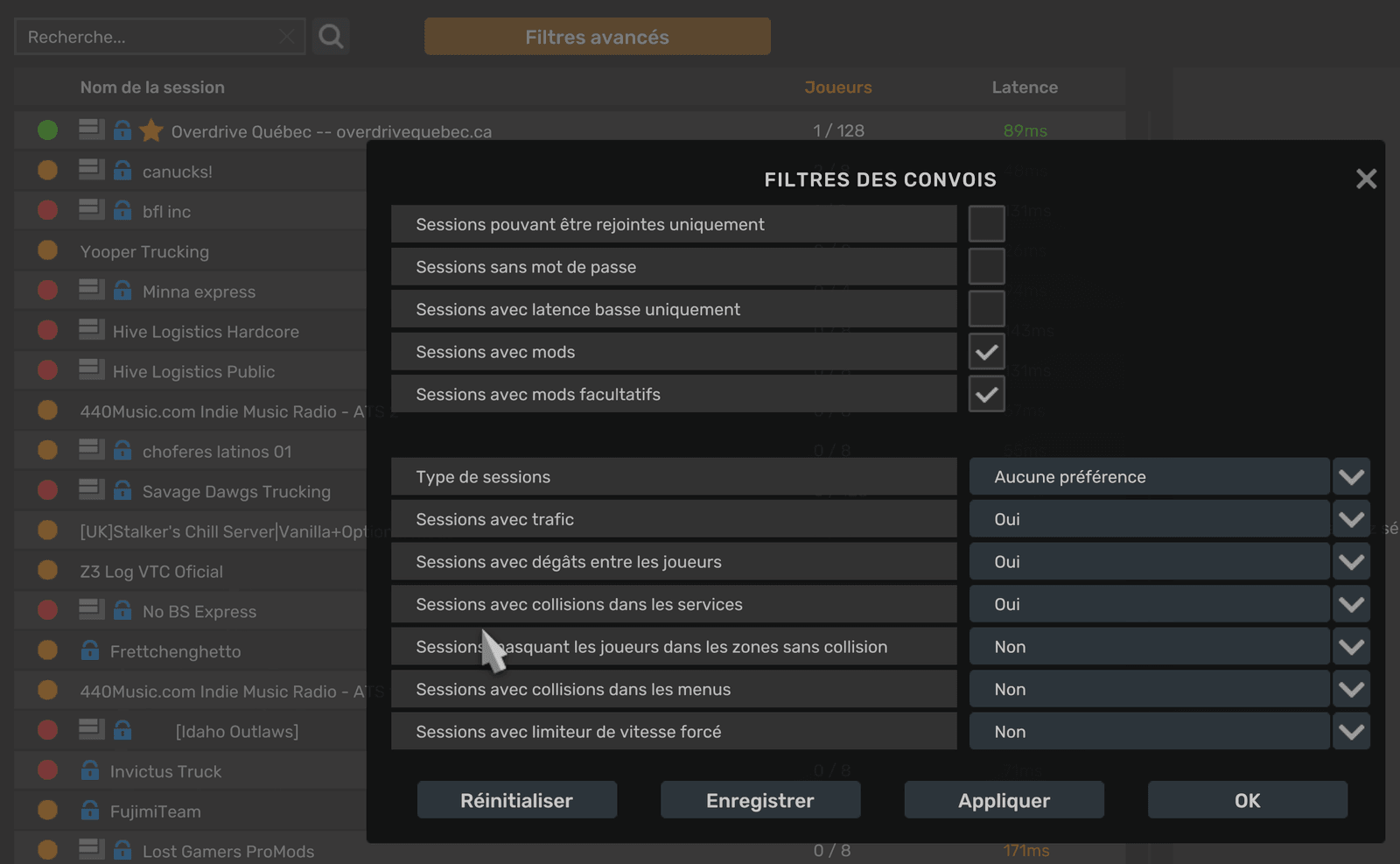
Solution 1 of 3 : Show the sessions with mods (advanced filters)
In the game, open the Lobby du convoi (“Convoy lobby”).
Click Filtres avancés (“Advanced filters”).
Tick Sessions avec mods (“Sessions with mods”). The server has no optional mod, so Sessions avec mods facultatifs (“Sessions with optional mods”) isn’t needed.
Click OK.
Look for Overdrive Québec in the list.
The convoy filters, in the game (its interface is in French here). Only the “Sessions avec mods” (sessions with mods) box matters: “Sessions avec mods facultatifs” is also ticked in the capture, but you do not need to tick it.
Did that fix your problem?
Solution 2 of 3 : Search with the launcher’s ID
In the launcher, on the server card (right), click Copier (“Copy”) next to the identifiant de recherche (search ID).
In the game: load your profile, open Convoy mode and its session browser.
Paste the ID in the search field with Ctrl+V.
Pick the server and enter the password (see “Where is the server password?”).
In the launcher, click Revérifier (“Check again”): the Ronde de sécurité (safety check) should be green.
The Gros convois activés (“Large convoys on”) line: if g_max_convoy_size is missing or different, click Corriger (“Fix”) (game closed). Without it, your game doesn’t show a 128-slot server.
Your game version must be the server’s (topic « Le lanceur » › « Jeu introuvable ou mauvaise version », “Game not found or wrong version”).
The ID changes when the server restarts: take it again from the launcher.
Look at the server status in #annonces-overdrive: it may be under maintenance.
Did that fix your problem?
Great, safe travels!
Still stuck? On the Discord, in the help channel (besoin-d-aide), pick your topic on the panel, then « Écrire au staff »: your request goes with the solutions you already tried, and a staff member answers you in a private thread.
How do I join the convoy, in the game? (step by step)
You’re in the game and you don’t know what to do to get into the Overdrive convoy.
The solution : The four things to do in the game
In the launcher, copy the search ID (Copier button, on the server card). The launcher also copies it when you click JOUER (“Play”).
Start the game with JOUER. At the menu, load your profile.
Open Convoy mode, then its session browser.
Click in the search field and paste the ID with Ctrl+V.
Pick Overdrive Québec in the list.
The game asks for the password: paste it (it’s in the launcher, Copier button under MOT DE PASSE (“Password”); you must be signed in with Steam).
If the game says Absent du serveur (“Missing from the server”) or offers to turn on the session’s mods, click Activer les mods de la session (“Turn on the session’s mods”): the game replaces your mods with the server’s (the 8 Overdrive modules and the Ultimate Graphics Mod), in the right order. You turn your own mods back on afterwards in the mod manager.
You see your truck in the garage or on the road: you’re in the convoy. No server in the list? The « Le serveur apparaît pas » (“The server doesn’t show up”) button.
Did that fix your problem?
Great, safe travels!
Still stuck? On the Discord, in the help channel (besoin-d-aide), pick your topic on the panel, then « Écrire au staff »: your request goes with the solutions you already tried, and a staff member answers you in a private thread.
The game asks for a password and you don’t have it.
The solution : In the launcher, signed in with Steam
Sign in with Steam in the launcher (top right, SE CONNECTER AVEC STEAM). If you’re not signed in, the server card says “Connecte-toi avec Steam pour voir le mot de passe” (“Sign in with Steam to see the password”) with a Se connecter (“Sign in”) button.
Once signed in, the server card shows a MOT DE PASSE (“Password”) frame with a Copier (“Copy”) button.
In the game, after picking the server in the session browser, paste it when the game asks.
Did that fix your problem?
Great, safe travels!
Still stuck? On the Discord, in the help channel (besoin-d-aide), pick your topic on the panel, then « Écrire au staff »: your request goes with the solutions you already tried, and a staff member answers you in a private thread.
Is the server online? How many people are driving?
You want to know whether the server is up or under maintenance.
The solution : See the server status
In the launcher, the server card says EN LIGNE (“Online”) or HORS LIGNE (“Offline”), with the time of the last check (“vérifié il y a …”, “checked … ago”).
The big number says how many truckers are on the road (128 slots at most), with the map and the server’s answer.
Click Actualiser (“Refresh”) to ask right away (the launcher asks again by itself every 90 seconds).
In Discord, #annonces-overdrive announces restarts and planned maintenance.
On the site, the État du serveur (“Server status”) page shows the same thing, without opening the launcher.
Still stuck? On the Discord, in the help channel (besoin-d-aide), pick your topic on the panel, then « Écrire au staff »: your request goes with the solutions you already tried, and a staff member answers you in a private thread.
How do I drive in a convoy with friends, or organise a convoy?
You want to drive with your people or see when there’s a convoy night.
The solution : The convoy channels and voice
All players drive on the same Overdrive Québec server: your friend must have done the same steps as you (launcher, mods, password).
To organise, write in #convois-libres (“free convoys”, open to everyone with the American Truck role).
The nights planned by the staff are in #convois-organisés (“organised convoys”). The launcher also shows them, with a countdown, in its header.
To talk while you drive: join the Crée ton convoi (“Create your convoy”) voice channel. Discord creates your own voice channel “Convoi de …” (“…’s convoy”), where your friends join you.
To be mentioned when a convoy is being organised, take the Alertes convoi (“Convoy alerts”) role in #rôles.
In the game, the convoy is organised with Convoy mode: the server accepts up to 128 players.
Did that fix your problem?
Great, safe travels!
Still stuck? On the Discord, in the help channel (besoin-d-aide), pick your topic on the panel, then « Écrire au staff »: your request goes with the solutions you already tried, and a staff member answers you in a private thread.
Opening the Logbook, starting your day, the inspection, breaks and driving hours, greyed-out buttons, your green or red book.
What is the Logbook? How do I open it?
You see LOGBOOK at the bottom of the launcher and you don’t know what it’s for.
The solution : Open the Logbook the first time
The Logbook is your trucker’s trip log, in the launcher: your trips, your day, your hours, your licence, your money, your company and the leaderboards.
To open it, click LOGBOOK, bottom right, next to JOUER (“Play”).
Does it ask you to sign in? “Connecte-toi pour ouvrir ton Logbook” (“Sign in to open your Logbook”): click SE CONNECTER AVEC STEAM.
The first time, a “Tes trajets, tes données” (“Your trips, your data”) window explains what is kept. Read it and click J’ai compris : activer mon Logbook (“Got it: turn on my Logbook”). Nothing goes onto the Internet as long as the Partager avec la communauté (“Share with the community”) box stays unticked.
For it to fill up while you drive, you need the plugin: in the Ronde de sécurité (safety check), line Logbook (plugin de télémétrie) › Installer (“Install”) (game closed). See “My Logbook stays empty”.
To change page, click a tab or use the keyboard’s left and right arrows. To leave: Fermer le Logbook (“Close the Logbook”).
Did that fix your problem?
Great, safe travels!
Still stuck? On the Discord, in the help channel (besoin-d-aide), pick your topic on the panel, then « Écrire au staff »: your request goes with the solutions you already tried, and a staff member answers you in a private thread.
Eight tabs at the top of the Logbook: Day, Trips, Finances, Balance sheet, Licence, On the road, Company, Leaderboard.
The solution : The eight tabs
Journée (“Day”): the day’s page, like a trucker’s logbook: the week at the top, the 24-hour grid, your remarks and the day in numbers.
Voyages (“Trips”): the register of your trips, with income by cargo, by contract type and by trailer.
Finances: your results, where the money goes, the game’s fines, fuel (an estimate).
Bilan (“Balance sheet”): balance sheet, cash, loans, drivers. The line “Compte en banque réel” (“Real bank account”) must be turned on (see “My balance and loans are empty”).
Permis (“Licence”): your points, your suspension and your driving record.
En route (“On the road”): the trip under way (departure, arrival, speed, estimated time) and the JOURNÉE DU CHAUFFEUR (“Driver’s day”) card with its buttons.
Compagnie (“Company”): create your company, ask to join one, invite truckers.
Classement (“Leaderboard”): the convoy’s week, with the best habits, the biggest incomes, the longest trips.
If you have several game profiles, the PROFIL line (under the tabs) picks the one whose numbers you see.
Did that fix your problem?
Great, safe travels!
Still stuck? On the Discord, in the help channel (besoin-d-aide), pick your topic on the panel, then « Écrire au staff »: your request goes with the solutions you already tried, and a staff member answers you in a private thread.
You want to use the trucker-day buttons (arrival, inspection, breaks).
The solution : From Logbook mode to “Arrivée à l’entreprise” (arrival at the company)
Logbook mode is off by default. Turn it on: tick Mode Logbook : ma journée par boutons (“Logbook mode: my day by buttons”), at the bottom of the Logbook (the same box is on the En route page).
Start the game with the launcher open: the buttons only light up when the game runs with the launcher open and the plugin installed.
Stop your truck (5 km/h at most).
In the Logbook, open the En route tab. On the JOURNÉE DU CHAUFFEUR card, click Arrivée à l’entreprise (“Arrival at the company”). That’s the start of your day.
Don’t drive before: driving without a started day counts as an offence (0 points, but your book turns red).
Then: take your trip in the game, then do the inspection (« Inspection avant de partir », “Inspection before leaving” button).
At the end of your day, click Fin de journée (“End of day”). For the next one, a single click: Arrivée à l’entreprise.
If you turn the mode off in the middle of a day, it ends without an offence, but your book counts that day in red.
Did that fix your problem?
Great, safe travels!
Still stuck? On the Discord, in the help channel (besoin-d-aide), pick your topic on the panel, then « Écrire au staff »: your request goes with the solutions you already tried, and a staff member answers you in a private thread.
You want to do the truck’s safety check for your day (not the launcher’s).
The solution : The inspection steps
First, take your trip (your contract) in the game: the inspection is done with the contract. Your day must be started (“Arrivée à l’entreprise”).
Logbook › En route › JOURNÉE DU CHAUFFEUR card: click Inspection mécanique (“Mechanical inspection”).
Walk around the truck: set the parking brake AND turn the engine off for 30 seconds. The countdown only runs with both. The card tells you which one is missing.
Start the engine: the air pressure must rise above the warning threshold (the card gives the number).
Visual inspection: turn on your headlights, your left and right turn signals, your hazard lights and your brake light. The card says “il reste …” (“… left”) for each.
The trailer is checked at the hitch: hitch it, the card notes it.
At the end: “Inspection faite, aucun défaut. Tu peux partir.” (“Inspection done, no defect. You can go.”) or the defects noted. A minor defect = a part worn to 10 % or more; major = 25 % or more.
A major defect, or a minor one not repaired in time, is an offence if you drive. Repair the part in the game, the card writes “Réparé” (“Repaired”).
Something is stuck? Recommencer l’inspection (“Restart the inspection”) starts over from zero.
Did that fix your problem?
Great, safe travels!
Still stuck? On the Discord, in the help channel (besoin-d-aide), pick your topic on the panel, then « Écrire au staff »: your request goes with the solutions you already tried, and a staff member answers you in a private thread.
What are the day’s buttons for (break, weigh, sleeper, yard…)?
On the JOURNÉE DU CHAUFFEUR card: Arrival, Inspection, Weigh, Break, Sleeper, Yard, Personal use, End.
The solution : One button, one moment of your day
Arrivée à l’entreprise (“Arrival at the company”): the start of your day (stop first).
Inspection mécanique (“Mechanical inspection”): the truck’s safety check, with your contract.
Passage à la pesée (“Weigh-station pass”): when you cross a scale, go at walking pace (10 km/h at most). Otherwise the “Balance évitée” (“Scale avoided”) fine can come.
Pause (“Break”): a short break, engine off, that gives driving hours back (see “How many driving hours do I have”).
Couchette (“Sleeper”): a full rest, engine off, brake on. At the end, your day ends.
Cour (“Yard”): a small move in the company yard (1 km and 10 km/h at most), counted as duty time.
Usage personnel (“Personal use”): driving for yourself, without a trailer or a contract, up to 75 km a day.
Fin de journée (“End of day”): you end your day. The rest that follows resets the hours to zero.
Did that fix your problem?
Great, safe travels!
Still stuck? On the Discord, in the help channel (besoin-d-aide), pick your topic on the panel, then « Écrire au staff »: your request goes with the solutions you already tried, and a staff member answers you in a private thread.
How many driving hours do I have? How do I get them back?
The driving dial turns amber, or the Logbook says your limit is exceeded.
The solution : The limit, the breaks, the rest
You have 4 h of driving in real time (not game time) before a rest. The “Conduite restante” (“Driving left”) dial shows it.
A short 5-minute break with the engine off gives you back 15 minutes, 2 times at most: 4 h 30 in all.
A 15-minute rest with the engine off (or the game closed) resets everything to zero.
The dial turns amber 30 minutes before the limit.
Engine running while stopped (at a red light, for example) counts as driving. Turn the engine off so your break counts.
Going over the limit: a “Heures de conduite dépassées” (“Driving hours exceeded”) offence for each slice of lateness. Stop and take your break.
In Canada, a break doesn’t give extra hours: here it’s a game rule to keep the game playable.
Your break isn’t counted? See “The Logbook doesn’t count my break” in “Options to turn on”.
Did that fix your problem?
Great, safe travels!
Still stuck? On the Discord, in the help channel (besoin-d-aide), pick your topic on the panel, then « Écrire au staff »: your request goes with the solutions you already tried, and a staff member answers you in a private thread.
My day’s buttons are greyed out, or the Logbook refuses
“Arrête-toi d’abord” (“Stop first”), “Commence ta journée d’abord” (“Start your day first”), “Le jeu doit tourner avec le plugin” (“The game must be running with the plugin”)…
The solution : Read the reason, then act
“Le mode Logbook est désactivé.” (“Logbook mode is off.”) › tick Mode Logbook : ma journée par boutons.
“Le jeu doit tourner avec le plugin.” (“The game must be running with the plugin.”) › start the game with the launcher open; if the plugin is missing, line Logbook (plugin de télémétrie) › Installer (game closed).
“Arrête-toi d’abord (ou roule au pas).” (“Stop first (or go at walking pace).”) › stop your truck (5 km/h at most).
“Commence ta journée d’abord.” (“Start your day first.”) › click Arrivée à l’entreprise. “Ta journée est déjà commencée.” (“Your day has already started.”) › nothing to redo.
“Prends ton voyage d’abord : l’inspection se fait avec le contrat.” (“Take your trip first: the inspection is done with the contract.”) › take a contract in the game.
“L’usage personnel, c’est sans remorque et sans contrat.” (“Personal use is without a trailer and without a contract.”) › unhitch your trailer, abandon the contract.
“Pas maintenant.” (“Not now.”) › wait for the current action (inspection, break) to end and try again.
None of that? Close the game and the launcher, reopen the launcher, start the game again.
Did that fix your problem?
Great, safe travels!
Still stuck? On the Discord, in the help channel (besoin-d-aide), pick your topic on the panel, then « Écrire au staff »: your request goes with the solutions you already tried, and a staff member answers you in a private thread.
The Logbook says “Livre rouge” (“Red book”) or “Livre en attente” (“Pending book”) with reasons.
The solution : What green, red and pending mean
Livre vert (“Green book”): “journal propre depuis 7 jours” (“clean log for 7 days”). All is well.
Livre rouge (“Red book”): the Logbook gives the reasons. A day without an inspection before leaving; driving hours exceeded; a defective truck on the road; driving outside a day.
Also: “le mode Logbook n’est pas activé” (“Logbook mode isn’t on”), or “les amendes du jeu sont désactivées” (“the game’s fines are off”) (the Logbook only counts with the game’s fines on).
Livre en attente (“Pending book”): you did everything right, but you must wait: Logbook mode (or the fines) must have been on for 7 days in a row.
To turn it green again: fix the cause (inspection before leaving, breaks, fines on) and let the 7 days pass.
Did that fix your problem?
Great, safe travels!
Still stuck? On the Discord, in the help channel (besoin-d-aide), pick your topic on the panel, then « Écrire au staff »: your request goes with the solutions you already tried, and a staff member answers you in a private thread.
How they work, verified or unverified, your category, your main profile, when you get ranked, where to see the leaderboards.
How do the leaderboards work?
You want to understand the categories, the verified lists and what it takes to be on them.
The solution : The categories, the lists, what it takes
There are 8 categories: your driving level (Arcade, Normal, Semi-réaliste “Semi-realistic”, Réaliste “Realistic”) × synchronized or non-synchronized gearbox. You’re ranked by your settings in Expérience de conduite (“Driving experience”).
There are two separate lists: verified (career started from zero) and unverified (you kept your save, always welcome).
Only your own deliveries count (never your employees’), and only on your main profile.
To be ranked, you need: to be signed in with Steam; to have ticked Partager avec la communauté (“Share with the community”) in the Logbook; to have the game’s fines on; to have waited 48 h after turning them on.
Where to see it: LOGBOOK › Classement (“Leaderboard”) tab (the convoy’s week), the site’s Leaderboards page, and the #classement channel.
Your “Ta catégorie : …” (“Your category: …”) line at the top of the Classement tab says where you’re ranked.
Still stuck? On the Discord, in the help channel (besoin-d-aide), pick your topic on the panel, then « Écrire au staff »: your request goes with the solutions you already tried, and a staff member answers you in a private thread.
Verified or unverified leaderboard? (“Did you keep your save?”)
The launcher asks you “As-tu gardé ta sauvegarde ou recommences-tu à zéro ?” (“Did you keep your save or are you starting from zero?”), or you were moved to unverified.
The solution : Choosing your list, and why you lose it
On your first sign-in, the launcher asks “As-tu gardé ta sauvegarde ou recommences-tu à zéro ?” (“Did you keep your save or are you starting from zero?”) with two buttons.
Je recommence à zéro (“I’m starting from zero”): you enter the verified leaderboard. As long as what we measure stays consistent (each delivery’s pay, the odometer km, the game time), you stay there.
J’ai gardé ma sauvegarde (“I kept my save”): you’re on the unverified leaderboard. We never read your save: only what the launcher measures while you play.
An inconsistency moves you to unverified, with the reason written on the Classement tab (“Classement non vérifié depuis le … : …”, “Unverified leaderboard since …: …”).
You restarted your career later, or you think it’s a mistake? Click Écrire au staff (“Write to the staff”): a mod can move you to verified (“Valider comme nouvelle sauvegarde”, “Validate as a new save”).
Didn’t see the question? Answer it when the launcher shows it: it comes back until you’ve answered.
Did that fix your problem?
Great, safe travels!
Still stuck? On the Discord, in the help channel (besoin-d-aide), pick your topic on the panel, then « Écrire au staff »: your request goes with the solutions you already tried, and a staff member answers you in a private thread.
My main profile: why did I drop out of the leaderboard?
You changed game profile, or the launcher says “Tu sors des classements pendant …” (“You’re leaving the leaderboards for …”).
The solution : Choose or change your main profile
Only your main profile counts on the leaderboard. What you drive on another profile never counts.
To choose it: LOGBOOK › PROFIL line (under the tabs) › click your profile › En faire mon profil principal (“Make it my main profile”).
You change main profile while the leaderboards are running? The launcher asks: “Tu sors des classements pendant 48 h… Veux-tu continuer ?” (“You’re leaving the leaderboards for 48 h… Do you want to continue?”) Click Oui (“Yes”) or Non (“No”).
Meanwhile, you don’t count. The new profile counts from the date written on the Classement tab.
Your licence, your driving hours and your company follow you across all your profiles.
Did that fix your problem?
Great, safe travels!
Still stuck? On the Discord, in the help channel (besoin-d-aide), pick your topic on the panel, then « Écrire au staff »: your request goes with the solutions you already tried, and a staff member answers you in a private thread.
I just turned fines on or changed category: when am I ranked?
You turned on the game’s fines, or you want to move up (or down) a category.
The solution : The delays, explained
After turning on the game’s fines, you must wait 48 h before being ranked. The Classement tab writes “tu seras classé à partir du …” (“you’ll be ranked from …”).
If you turn off the fines or change profile, you leave the leaderboard right away.
Moving up a category (Normal › Semi-realistic, for example): keep the harder settings for 48 h and make at least one delivery at that level. The tab says “Tu montes en … le … si tu gardes ces réglages” (“You move up to … on … if you keep these settings”).
Moving down a category: the launcher asks “Tu vas descendre dans le classement … Veux-tu continuer ?” (“You’re going to drop down the leaderboard … Do you want to continue?”) Click Oui or Non.
At JOUER (“Play”), a notice warns you if your settings rank you lower than your category, or if settings are missing to move up.
Did that fix your problem?
Great, safe travels!
Still stuck? On the Discord, in the help channel (besoin-d-aide), pick your topic on the panel, then « Écrire au staff »: your request goes with the solutions you already tried, and a staff member answers you in a private thread.
The leaderboard says my fines are “unknown” or that I’m “not ranked yet”
“Amendes du jeu : état inconnu pour l’instant” (“Game fines: status unknown for now”) or “pas encore classé (ta première partie mesurée te classe)” (“not ranked yet (your first measured game ranks you)”).
The solution : Let the launcher see a game
The launcher must see a game with the fines on: start the game with the launcher open, load your profile.
It reads the fines setting when the game starts. Drive a bit, then go back to the Classement tab.
Still “état inconnu”? Check that the fines are on in that profile (see “Turn on fines” in “Options to turn on”).
“Pas encore classé”: your first measured game ranks you. Make a delivery with your main profile.
Did that fix your problem?
Great, safe travels!
Still stuck? On the Discord, in the help channel (besoin-d-aide), pick your topic on the panel, then « Écrire au staff »: your request goes with the solutions you already tried, and a staff member answers you in a private thread.
My deliveries don’t count on the leaderboard: open the launcher BEFORE the game
You delivered contracts, but they don’t show on the leaderboard, or they stay “en attente” (pending).
The solution : The right order: launcher, game, then close the game before the launcher
Open the launcher BEFORE starting the game, and leave it open as long as you drive. Simplest: start the game with the JOUER (“Play”) button.
Why: a delivery counts on the leaderboard only if the launcher saw your game from start to finish. If the game was already running when you open the launcher, it didn’t see the start: that game’s deliveries never count on the leaderboard.
Launcher 0.9.5 (or newer) tells you right away: a notice at the top of the window (« Compris », “Got it” button), and a line in the Logbook and on the Leaderboard while the game lasts. See the notice? Close the game, then start it again with the launcher’s JOUER button.
Close the game BEFORE the launcher. If you close the launcher while the game runs, it misses the end of the game: its deliveries don’t count either. A game that ended with the launcher open is what settles your “pending” deliveries.
To see where you stand: LOGBOOK › Classement tab. The line “Amendes du jeu activées : tu es au classement” (“Game fines on: you’re on the leaderboard”) and your “Ta catégorie : …” line say the launcher saw you properly.
Just drove with the launcher closed? Nothing to repair: close the game, open the launcher, then start a new game in order. The deliveries that follow count normally.
Still stuck? On the Discord, in the help channel (besoin-d-aide), pick your topic on the panel, then « Écrire au staff »: your request goes with the solutions you already tried, and a staff member answers you in a private thread.
Your remaining points, the suspension, Monday’s recovery, the perfect-delivery bonus, the inactive licence.
How does my points licence work?
Solution 1 of 2 : The points and the suspension
Your licence starts with 15 points. Each offence takes some off, never below 0. The launcher says “Il te reste X / 15 points” (“You have X / 15 points left”).
Only the game’s fines (speeding, red light, wrong way…) take points off, and only when fines are on in your game. The launcher no longer watches your speed itself.
Points do not fade with time: you get them back with Monday and the bonus (next method).
At 0 points left, your licence is suspended for 3, 6 or 12 days, depending on your last suspension (we look at the 24 days before). You can still play, but the whole convoy sees it.
During the suspension, your offences go on your record without taking anything more off. At the end, you get your 15 points back.
To see it: LOGBOOK › Permis (“Licence”) tab (your points, your suspension, your driving record).
Did that fix your problem?
Solution 2 of 2 : Getting points back
Every Monday at midnight, Eastern standard time, you get 6 points back (never more than your maximum).
Bonus: for every 4 perfect deliveries of over 1,000 km, you get 2 points back. They don’t need to be consecutive: the remainder is kept.
A perfect delivery = delivered (a cancelled one doesn’t count), the game’s fines on, and no offence since your previous delivery, even one that costs no point.
Monday’s recovery and the bonus give nothing during a suspension.
Did that fix your problem?
Great, safe travels!
Still stuck? On the Discord, in the help channel (besoin-d-aide), pick your topic on the panel, then « Écrire au staff »: your request goes with the solutions you already tried, and a staff member answers you in a private thread.
Update your launcher: the game scale (Monday’s recovery, the bonus, the suspension in days) comes with the version that brings it. An older version keeps the old scale.
The recovery comes Monday at midnight, Eastern standard time: 6 points, no more. Before Monday, nothing changes.
For the bonus, count your perfect deliveries: you need 4, each over 1,000 km, with no offence since the previous one. The Logbook writes it under your licence (“Encore N pour récupérer … points”, “N more to recover … points”).
Open LOGBOOK › Permis: your record says where your lost points came from.
Did that fix your problem?
Great, safe travels!
Still stuck? On the Discord, in the help channel (besoin-d-aide), pick your topic on the panel, then « Écrire au staff »: your request goes with the solutions you already tried, and a staff member answers you in a private thread.
A “PERMIS SUSPENDU — Vous roulez illégalement” (“LICENCE SUSPENDED — You are driving illegally”) screen at startup, or next to your name.
The solution : What happens, and when it ends
Your licence is suspended when you have 0 points left. At startup, the launcher shows “PERMIS SUSPENDU”: click to go on.
The game still starts, you can play. But others see it next to your name on the leaderboards.
LOGBOOK › Permis writes “PERMIS SUSPENDU jusqu’au …” (“LICENCE SUSPENDED until …”): that’s your end date. The suspension lasts 3, 6 or 12 days, depending on your last suspension.
During the suspension, your offences go on your record, but nothing more is taken off. Monday and the bonus give nothing.
At the end, you get your 15 points back at once (“Tes points reviennent à la fin de la suspension, le …”, “Your points come back at the end of the suspension, on …”).
Did that fix your problem?
Great, safe travels!
Still stuck? On the Discord, in the help channel (besoin-d-aide), pick your topic on the panel, then « Écrire au staff »: your request goes with the solutions you already tried, and a staff member answers you in a private thread.
My licence is “inactive” or the launcher says “Turn on the game’s fines”
“PERMIS INACTIF” (“LICENCE INACTIVE”), or “Active les amendes dans les options du jeu pour être classé et garder ton permis” (“Turn on fines in the game’s options to be ranked and keep your licence”).
The solution : Turn on the game’s fines
Your licence counts only with the game’s fines on. Without them it’s inactive: no points lost, but no leaderboard.
In the game, open the options and turn on fines, in the profile you play in convoy.
Start the game with the launcher open: it reads your setting at startup. The notice goes away when it sees the fines on.
The leaderboard takes you 48 h after turning them on (« Classements » (“Leaderboards”) button).
Did that fix your problem?
Great, safe travels!
Still stuck? On the Discord, in the help channel (besoin-d-aide), pick your topic on the panel, then « Écrire au staff »: your request goes with the solutions you already tried, and a staff member answers you in a private thread.
How to take part, the time bar stuck at zero, linking your Discord with /lier, winning a key, getting the American Truck role.
How do I take part in the rewards?
The solution : The conditions, in order
Sign in with Steam in the launcher.
Open Récompenses (“Rewards”) (top right of the launcher), read the rules and the odds (Lire les règles et les chances “Read the rules and the odds”), tick “J’ai 16 ans ou plus et j’habite au Canada” (“I am 16 or older and I live in Canada”), then click J’ACCEPTE (“I accept”). Time only counts after that. You can withdraw your consent whenever you like (Retirer mon accord “Withdraw my consent”).
Link your Discord: LIER MON DISCORD (“Link my Discord”), Copier le code (“Copy the code”), then in Le Bunker QC, channel #rôles, click Lier mon compte Overdrive (“Link my Overdrive account”) and paste the code.
Take the American Truck role in #rôles: the bot checks every hour that you still have it.
Your Discord account must be 30 days old, and your arrival at the Bunker 2 days old (against fake accounts).
Drive 1 h 30 on the Overdrive server in your day (midnight to midnight, Québec time): you can then click OUVRIR MON BONBON (“Open my candy”) and TENTER LE CAVIAR (“Try the caviar”).
During holidays, the candy becomes a gift: OUVRIR MON CADEAU (“Open my gift”) button, one a day.
Still stuck? On the Discord, in the help channel (besoin-d-aide), pick your topic on the panel, then « Écrire au staff »: your request goes with the solutions you already tried, and a staff member answers you in a private thread.
“TU AS GAGNÉ!” (“YOU WON!”) “Une clé de jeu…” (“A game key…”) or “Gain en vérification” (“Win under review”).
The solution : From “TU AS GAGNÉ” to the key in Steam
A win goes through the staff first: “Gain en vérification”. They take a look for 24 h at most, before giving you your key.
When it’s ready, open Récompenses and click VOIR MA CLÉ (“See my key”).
The launcher first asks you a small skill question (as in any contest in Canada). Write your answer and click VALIDER (“Validate”). Wrong answer? Try again (after 3 tries, the question changes).
Your key is shown. Click Copier la clé (“Copy the key”): it is cleared from the clipboard after 60 seconds.
In Steam: Jeux (“Games”) menu › Activer un produit (“Activate a product”), paste the key.
The key is shown only to you: keep it to yourself. Cacher (“Hide”) puts it out of sight again.
A win cancelled after review (rules not respected) goes back to the draw. Been a long time? Écrire au staff (“Write to the staff”).
Did that fix your problem?
Great, safe travels!
Still stuck? On the Discord, in the help channel (besoin-d-aide), pick your topic on the panel, then « Écrire au staff »: your request goes with the solutions you already tried, and a staff member answers you in a private thread.
How do I get my member access (Discord linked and American Truck role)?
The solution : The three things you need
Steam: sign in with Steam in the launcher.
American Truck role: join Le Bunker QC and click the American Truck button in #rôles.
Discord linked: in the launcher, LIER MON DISCORD (Récompenses), then Copier le code. In #rôles, click Lier mon compte Overdrive and paste the code (it works once, for 10 minutes).
The bot answers you privately that it’s linked. If it says you’re missing the role, take it in #rôles and you’re set.
The rewards require this. In the LOGBOOK, the Accès membre (“Member access”) card shows where you stand, step by step, with a button for each missing one.
Did that fix your problem?
Great, safe travels!
Still stuck? On the Discord, in the help channel (besoin-d-aide), pick your topic on the panel, then « Écrire au staff »: your request goes with the solutions you already tried, and a staff member answers you in a private thread.
The solution : Check what the launcher says under the bar
Open Récompenses in the launcher’s header.
Did you click J’ACCEPTE? Time only counts after that.
Read the line under the bar: “Ton jeu est en pause” (“Your game is paused”), “Ton camion est arrêté” (“Your truck is stopped”), “Tu n’es pas sur le serveur Overdrive” (“You’re not on the Overdrive server”), “Ton compte est nouveau” (“Your account is new”) (2 days)… it says why a minute didn’t count.
Only time spent driving on the Overdrive server counts: 1 h 30 in your day (midnight to midnight, Québec time).
Still stuck? On the Discord, in the help channel (besoin-d-aide), pick your topic on the panel, then « Écrire au staff »: your request goes with the solutions you already tried, and a staff member answers you in a private thread.
“Ce code ne marche pas : il est mauvais, déjà utilisé ou expiré (10 minutes).” (“This code doesn’t work: it’s wrong, already used or expired (10 minutes).”)
Solution 1 of 2 : A new code, pasted right away
In the launcher, click LIER MON DISCORD (Récompenses).
Click Copier le code (“Copy the code”).
In Le Bunker QC, channel #rôles, click Lier mon compte Overdrive and paste the code (or type /lier and paste the code in the box). The code works once, for 10 minutes.
The bot answers you privately. Missing the American Truck role? Take it in #rôles.
Did that fix your problem?
Solution 2 of 2 : If the bot says this Discord is already linked
One Discord per Overdrive account: unlink the other account first, in its launcher (Délier “Unlink”).
Start again with a new code.
Did that fix your problem?
Great, safe travels!
Still stuck? On the Discord, in the help channel (besoin-d-aide), pick your topic on the panel, then « Écrire au staff »: your request goes with the solutions you already tried, and a staff member answers you in a private thread.
The Arcade, Normal, Semi-realistic and Realistic presets, getting your settings back, and the convoy’s settings.
How do I choose a driving preset?
The solution : Apply a preset
In the launcher’s header, click Expérience de conduite (“Driving experience”).
Choose Arcade, Normal, Semi-réaliste (“Semi-realistic”) or Réaliste (“Realistic”) (each card says what it changes), and your options (steering wheel in the cabin, non-synchronized gearbox).
Click Appliquer (“Apply”). If the game is open, the choice waits for your next start with JOUER (“Play”).
Good to know: a few settings (bumps, rain sensor, ABS, traction control) live in a file shared by all your profiles.
Your leaderboard category follows your real settings (« Classements » button).
Did that fix your problem?
Great, safe travels!
Still stuck? On the Discord, in the help channel (besoin-d-aide), pick your topic on the panel, then « Écrire au staff »: your request goes with the solutions you already tried, and a staff member answers you in a private thread.
Click Restaurer mes réglages (“Restore my settings”): the launcher puts back the copy it kept before its first change.
The launcher says what came back, what it kept and why.
Did that fix your problem?
Great, safe travels!
Still stuck? On the Discord, in the help channel (besoin-d-aide), pick your topic on the panel, then « Écrire au staff »: your request goes with the solutions you already tried, and a staff member answers you in a private thread.
My traffic or weather settings differ from the server’s
The “Réglages du convoi” (“Convoy settings”) line of the Ronde de sécurité.
The solution : Align with the server
On the Réglages du convoi line, click Aligner sur le serveur (“Align with the server”): you get the same settings as everyone (traffic, time zones, bad weather).
If the game is open, the change waits for your next start.
Remettre mes réglages (“Put my settings back”) gives you yours back.
Did that fix your problem?
Great, safe travels!
Still stuck? On the Discord, in the help channel (besoin-d-aide), pick your topic on the panel, then « Écrire au staff »: your request goes with the solutions you already tried, and a staff member answers you in a private thread.
Not on the leaderboard, empty Logbook, your break not counting, your position not on the map, the notice about fines, the radio in the game: it’s often a box you haven’t ticked.
My Logbook stays empty (“The plugin isn’t installed”)
“Le plugin n’est pas installé : le Logbook attend ses premières données.” (“The plugin isn’t installed: the Logbook is waiting for its first data.”)
The solution : Install the Logbook plugin (optional)
The Logbook reads your trips thanks to a small file from SCS’s official SDK, which the game loads itself. It’s optional: as long as you don’t install it, the Logbook stays empty.
Close the game.
In the Ronde de sécurité (safety check), on the Logbook (plugin de télémétrie) line, click Installer (“Install”) (or Mettre à jour “Update” if the launcher offers it).
The first time you open the Logbook, read the “Tes trajets, tes données” (“Your trips, your data”) window and click J’ai compris : activer mon Logbook.
At the game’s next start, an “SDK” warning shows: that’s normal, click OK. Drive: your trips are recorded by themselves.
“Le fichier est utilisé. Ferme le jeu, puis réessaie.” (“The file is in use. Close the game, then try again.”) means the game is still open.
Did that fix your problem?
Great, safe travels!
Still stuck? On the Discord, in the help channel (besoin-d-aide), pick your topic on the panel, then « Écrire au staff »: your request goes with the solutions you already tried, and a staff member answers you in a private thread.
The Logbook doesn’t count my break (driving hours)
You stopped your truck, but your driving doesn’t reset in the Logbook.
The solution : Take a break that counts
Update your launcher: the game’s pause menu counts toward your break since a recent version. An older version doesn’t count it.
Stop and turn the engine off. Engine running while stopped counts as driving (like at a red light).
Stay parked 15 minutes with the engine off: your driving resets to zero. Closing the game also counts as a break.
You can spend your break in the game’s pause menu or with the game minimised: parked with the engine off, it counts. With the engine running, the menu counts for nothing.
Don’t move the truck during your break: if it rolls in the meantime, your break doesn’t count.
The line under the Logbook dial shows your break (“Pause : … min sur 15”, “Break: … min out of 15”). If it says “Moteur en marche à l’arrêt” (“Engine running while stopped”), turn the engine off.
A short 5-minute break with the engine off works the same, pause menu included: it gives you a little more driving.
Did that fix your problem?
Great, safe travels!
Still stuck? On the Discord, in the help channel (besoin-d-aide), pick your topic on the panel, then « Écrire au staff »: your request goes with the solutions you already tried, and a staff member answers you in a private thread.
I’m not on the leaderboards, or my profile card is empty
Your name doesn’t show on the leaderboards of the launcher or the site.
The solution : Tick “Partager avec la communauté” (Share with the community)
Open the Logbook in the launcher. At the bottom of the page, the Partager avec la communauté box is unticked by default: as long as it is, nothing goes onto the Internet.
The leaderboards show you under your Steam name: sign in with Steam in the launcher.
Tick the box. If an “Apparaître au classement de la communauté ?” (“Appear on the community leaderboard?”) window shows, read it and click Oui, je participe (“Yes, I take part”).
Once sharing is ticked, more boxes appear: Mon camion et mon arrivée dans la compagnie sur ma fiche (“My truck and my joining a company on my card”), Ma position en direct sur la carte des membres (“My live position on the members’ map”) and, if the server offers it, Mes réglages de conduite, mes km et mon temps de jeu (“My driving settings, my km and my playing time”). Each one is your choice: tick only those you want.
The game’s fines must also be on (see “Turn on fines”), and you must have waited 48 h after turning them on. You can untick everything whenever you like: your sharing stops.
Did that fix your problem?
Great, safe travels!
Still stuck? On the Discord, in the help channel (besoin-d-aide), pick your topic on the panel, then « Écrire au staff »: your request goes with the solutions you already tried, and a staff member answers you in a private thread.
The solution : Tick “Ma position en direct sur la carte des membres” (My live position on the members’ map)
The live map is a separate choice, unticked by default.
In the Logbook, first tick Partager avec la communauté.
Then tick Ma position en direct sur la carte des membres (hover over it to read everything it shares).
While the game runs, signed-in members see your truck, your speed and your current delivery; signed-out visitors only see an anonymous dot. The server doesn’t keep your position: it disappears 2 minutes after the last send.
To take yourself off the map, untick the box: your position goes right away.
Did that fix your problem?
Great, safe travels!
Still stuck? On the Discord, in the help channel (besoin-d-aide), pick your topic on the panel, then « Écrire au staff »: your request goes with the solutions you already tried, and a staff member answers you in a private thread.
“Active les amendes dans les options du jeu pour être classé et garder ton permis.” (“Turn on fines in the game’s options to be ranked and keep your licence.”)
The solution : Turn on fines in the game
The leaderboards, the points licence and the Logbook count only with the game’s fines on. Without them, your licence is inactive (no points) and you aren’t ranked.
In the game, open the options and turn on fines.
Do it in the profile you play in convoy: the launcher reads this setting profile by profile.
The launcher reads this setting again during your game: the notice goes away when it sees the fines on. The leaderboard takes you 48 h after.
Did that fix your problem?
Great, safe travels!
Still stuck? On the Discord, in the help channel (besoin-d-aide), pick your topic on the panel, then « Écrire au staff »: your request goes with the solutions you already tried, and a staff member answers you in a private thread.
My balance, my balance sheet, my loans are empty in the Logbook
The Bilan and Finances tabs don’t have your real balance. Line “Compte en banque réel (sauvegardes lisibles)” (“Real bank account (readable saves)”).
The solution : Turn on “Compte en banque réel” (Real bank account) (optional)
To show your real balance, your balance sheet, your loans and your drivers, the game must write its saves as text. It’s optional.
Close the game. In the Ronde de sécurité, on the Compte en banque réel (sauvegardes lisibles) line, click Activer (“Turn on”).
The launcher fixes your settings file (config.cfg) after a safety copy. Autosaves become a little slower.
The Logbook then reads your balance, your loans, your trucks and your drivers in your save, without ever writing anything to it, and everything stays on your PC. Your data appears after your next save in the game.
Did that fix your problem?
Great, safe travels!
Still stuck? On the Discord, in the help channel (besoin-d-aide), pick your topic on the panel, then « Écrire au staff »: your request goes with the solutions you already tried, and a staff member answers you in a private thread.
The radio is no longer in the launcher: it plays in the game.
The solution : Add it to the game’s radio list
In the launcher’s Ronde de sécurité, find the Radio Overdrive dans le jeu (“Overdrive Radio in the game”) line.
Click Ajouter (“Add”), then confirm.
The launcher only adds the Overdrive Radio to your game’s Internet radio list, nothing else: it’s the only game file it touches, and only if you confirm.
Did that fix your problem?
Great, safe travels!
Still stuck? On the Discord, in the help channel (besoin-d-aide), pick your topic on the panel, then « Écrire au staff »: your request goes with the solutions you already tried, and a staff member answers you in a private thread.
Installing a mod, launcher or server update: what to close, where to click, where to read what’s new.
How do I install an update of the Overdrive mods?
“Mise à jour des mods Overdrive disponible” (“Overdrive mods update available”) above the LOGBOOK.
Solution 1 of 2 : Install it in the Logbook
Close the game.
In the launcher, click the notice above the LOGBOOK (or open the Logbook): the “Mise à jour disponible” (“Update available”) panel gives the version, the number of files and the size.
Click Installer (“Install”), and keep the game closed until the end. A bar moves.
At the end: “Fichiers vérifiés : ce sont exactement ceux du convoi.” (“Files verified: they are exactly the convoy’s.”) You can click JOUER (“Play”).
The version’s notes are in the launcher (“Lire les notes complètes”, “Read the full notes”) and in #mises-à-jour.
Did that fix your problem?
Solution 2 of 2 : If the installation fails
Click Réessayer (“Try again”) in the update panel.
Check your disk’s free space and whether your antivirus blocked a file.
In the Ronde de sécurité, click Revérifier (“Check again”), then Corriger (“Fix”) or Télécharger (“Download”) on each red line.
Did that fix your problem?
Great, safe travels!
Still stuck? On the Discord, in the help channel (besoin-d-aide), pick your topic on the panel, then « Écrire au staff »: your request goes with the solutions you already tried, and a staff member answers you in a private thread.
Still stuck? On the Discord, in the help channel (besoin-d-aide), pick your topic on the panel, then « Écrire au staff »: your request goes with the solutions you already tried, and a staff member answers you in a private thread.
A “Mise à jour disponible” (“Update available”) or “Mise à jour obligatoire” (“Mandatory update”) banner at the top of the launcher.
The solution : Update the launcher
The banner says “Version X (tu as la Y)” (“Version X (you have Y)”). Click Mettre à jour (“Update”).
The launcher downloads the new version, then says “Installation… le lanceur redémarre.” (“Installing… the launcher is restarting.”) Don’t close it.
It reopens by itself, on the new version. “Lanceur mis à jour (tu avais la … )” (“Launcher updated (you had …)”).
Plus tard (“Later”) postpones the notice. If it says “Mise à jour obligatoire avant de rouler” (“Mandatory update before driving”), you have to do it.
Want to look for it yourself? Paramètres › Vérifier les mises à jour (“Check for updates”).
Doesn’t work? The launcher is in a protected folder (see “Protected folder”), or Windows blocked it (see “New launcher version blocked”).
Did that fix your problem?
Great, safe travels!
Still stuck? On the Discord, in the help channel (besoin-d-aide), pick your topic on the panel, then « Écrire au staff »: your request goes with the solutions you already tried, and a staff member answers you in a private thread.
“American Truck Simulator est ouvert. Ferme le jeu, puis réessaie.” (“American Truck Simulator is open. Close the game, then try again.”)
The solution : Close the game completely
Quit the game from its menu (not just minimising the window).
Wait until Steam no longer shows the game as “running” (a few seconds).
In the launcher, try again (or click Revérifier).
Did that fix your problem?
Great, safe travels!
Still stuck? On the Discord, in the help channel (besoin-d-aide), pick your topic on the panel, then « Écrire au staff »: your request goes with the solutions you already tried, and a staff member answers you in a private thread.
“Windows (Smart App Control) a bloqué la nouvelle version : rien n’a été remplacé.” (“Windows (Smart App Control) blocked the new version: nothing was replaced.”)
The solution : Download the new version from the site
Nothing was replaced: your current launcher still works.
Download the new version from the site’s Download page.
If Windows blocks it on opening, follow the topic « Le lanceur » › « Windows bloque le lanceur » (“Windows blocks the launcher”).
Still stuck? On the Discord, in the help channel (besoin-d-aide), pick your topic on the panel, then « Écrire au staff »: your request goes with the solutions you already tried, and a staff member answers you in a private thread.
Still stuck? On the Discord, in the help channel (besoin-d-aide), pick your topic on the panel, then « Écrire au staff »: your request goes with the solutions you already tried, and a staff member answers you in a private thread.
Where the graphics options are, DirectX 12 not working, a blurry image, removing OptiScaler or Snowy Moon, a game that moves in jerks.
Where are the graphics options? What’s in them?
You’re looking for how to set DirectX, the image scale or the frames per second.
The solution : The OPTIONS GRAPHIQUES tab
On the launcher window’s left edge, click the vertical OPTIONS GRAPHIQUES (“Graphics options”) tab.
Ma carte (“My card”): your graphics card and what the launcher knows about it.
DirectX 12: the game in DirectX 12 is experimental. There you choose DirectX 11 or DirectX 12 (expérimental).
Mesurer (“Measure”): measures your frames per second.
Mise à l’échelle (“Upscaling”): a step-by-step guide to image upscaling, depending on your card (AMD, NVIDIA, Intel). The launcher installs none of it: you copy the files yourself. Those tools (OptiScaler, Snowy Moon) are not ours.
Diagnostic: sets the exact image scale if it’s blurry (see “The image is blurry”).
Every change is preceded by a safety copy of config.cfg, in the launcher’s folder.
Did that fix your problem?
Great, safe travels!
Still stuck? On the Discord, in the help channel (besoin-d-aide), pick your topic on the panel, then « Écrire au staff »: your request goes with the solutions you already tried, and a staff member answers you in a private thread.
“DirectX 12 n’a pas marché à ton dernier départ…” (“DirectX 12 didn’t work at your last start…”)
The solution : Go back to DirectX 11
Close the game.
If the launcher shows the “DirectX 12 n’a pas marché…” notice, click Revenir à DirectX 11 (“Go back to DirectX 11”).
Otherwise: open the OPTIONS GRAPHIQUES tab (the launcher’s left edge) › DirectX 12 › set DirectX 11 again.
The launcher keeps a safety copy of config.cfg before each change, in its own folder (sauvegardes-reglages).
Did that fix your problem?
Great, safe travels!
Still stuck? On the Discord, in the help channel (besoin-d-aide), pick your topic on the panel, then « Écrire au staff »: your request goes with the solutions you already tried, and a staff member answers you in a private thread.
Click Régler l’échelle exacte (“Set the exact scale”): the launcher only writes r_scale_x and r_scale_y in config.cfg, after a safety copy.
Not happy? Remettre mon échelle d’avant (“Put my previous scale back”) undoes the change.
Did that fix your problem?
Great, safe travels!
Still stuck? On the Discord, in the help channel (besoin-d-aide), pick your topic on the panel, then « Écrire au staff »: your request goes with the solutions you already tried, and a staff member answers you in a private thread.
The launcher installs none of that: it’s a guide (Graphics options › Upscaling). You were the one who copied the files.
The solution : Go back to the original game
Close the game.
In OPTIONS GRAPHIQUES › Mise à l’échelle, look at the list of files to delete and those to never delete (they belong to the game or the Logbook).
Delete only the OptiScaler and Snowy Moon files you added in the game’s bin\win_x64 folder. The launcher deletes nothing: you do it.
In Steam: right-click American Truck Simulator › Propriétés (“Properties”) › Fichiers installés (“Installed files”) › Vérifier l’intégrité des fichiers du jeu (“Verify integrity of game files”).
OptiScaler and Snowy Moon are not Overdrive tools: the staff can’t repair them for you.
Did that fix your problem?
Great, safe travels!
Still stuck? On the Discord, in the help channel (besoin-d-aide), pick your topic on the panel, then « Écrire au staff »: your request goes with the solutions you already tried, and a staff member answers you in a private thread.
“t_locked_fps vaut … : le jeu roule comme s’il tournait à … images par seconde” (“t_locked_fps is …: the game runs as if it ran at … frames per second”)
The solution : Fix t_locked_fps
Close the game.
In the Ronde de sécurité, on the frames-per-second line, click Corriger (“Fix”): the launcher sets t_locked_fps back to 0 (what SCS asks for).
It takes effect at the game’s next start.
Did that fix your problem?
Great, safe travels!
Still stuck? On the Discord, in the help channel (besoin-d-aide), pick your topic on the panel, then « Écrire au staff »: your request goes with the solutions you already tried, and a staff member answers you in a private thread.
On the server, all 9 mods are required (the Overdrive modules + the Ultimate Graphics Mod) and no other is allowed. Also: old Workshop mods to remove, a mod that sits above Overdrive.
The game says “Absent du serveur” (Missing from the server) on one of my mods
When joining the convoy, one of your mods is marked “Absent du serveur” and you can’t get in.
The solution : Turn on the session’s mods
On the Overdrive server, the 9 mods are required: the 8 Overdrive modules and the Ultimate Graphics Mod. The launcher (modules) and Steam (Ultimate Graphics Mod) install them as usual. No other mod is allowed.
If the game says Absent du serveur on one of your mods, click Activer les mods de la session (“Turn on the session’s mods”): the game replaces your active mods with the server’s.
To get your own mods back afterwards (solo or elsewhere), turn them on again in the mod manager, at the main menu.
A mod is missing from your list? Close the game, open the launcher and click Revérifier (“Check again”): the red lines are fixed with Télécharger (“Download”) or Corriger (“Fix”).
Still stuck? On the Discord, in the help channel (besoin-d-aide), pick your topic on the panel, then « Écrire au staff »: your request goes with the solutions you already tried, and a staff member answers you in a private thread.
I still have old Workshop mods (Slav Jerry sounds, Teax’s collection, M11)
Those mods were in the old list. Since 3.0.20, their sounds and the mirrors are included in Overdrive.
The solution : Unsubscribe in Steam
Slav Jerry’s 8 sound mods, Teax’s sound collection, the Cummins M11 mod and True Mirror FOV are no longer needed: their content is in Overdrive (with Slav Jerry’s permission for his sounds).
In Steam, open American Truck Simulator’s Workshop page, then your subscriptions.
Click Se désabonner (“Unsubscribe”) on each of those mods.
In the game, open the mod manager: check that they’re no longer active, and that the Overdrive modules are at the top.
Still stuck? On the Discord, in the help channel (besoin-d-aide), pick your topic on the panel, then « Écrire au staff »: your request goes with the solutions you already tried, and a staff member answers you in a private thread.
The launcher says a mod is above an Overdrive module
“… est au-dessus de … : il peut remplacer des fichiers de …” (“… is above …: it can replace files of …”)
Solution 1 of 2 : Move your mod below Overdrive
On the Overdrive server, no mod other than the 8 Overdrive modules and the Ultimate Graphics Mod is allowed. To play solo or elsewhere, you can keep your mods: the launcher only reminds you.
At the game’s main menu, open the mod manager.
Put your mod below the Overdrive modules: Overdrive must stay at the very top.
Confirm and drive: the launcher checks again after your game.
Did that fix your problem?
Solution 2 of 2 : Test without your mod
Turn your mod off in the mod manager for one game.
If the problem goes away, it’s a conflict between your mod and Overdrive. On the server it has to stay off anyway (no other mod allowed).
Did that fix your problem?
Great, safe travels!
Still stuck? On the Discord, in the help channel (besoin-d-aide), pick your topic on the panel, then « Écrire au staff »: your request goes with the solutions you already tried, and a staff member answers you in a private thread.
It’s required on the server: Steam downloads it, the launcher doesn’t install it, it only looks at where it stands.
The solution : Place it below Météo (Weather)
To get it: subscribe to the Ultimate Graphics Mod ATS on the Workshop: it’s required to enter the server (the launcher shows its state: “Téléchargé par Steam” (“Downloaded by Steam”), “En téléchargement” (“Downloading”)…).
In the mod manager, place it below the Overdrive Québec — Météo module.
If it’s above Météo, Overdrive’s sky is lost: the sun’s date goes back to autumn and the nights are too long.
Did that fix your problem?
Great, safe travels!
Still stuck? On the Discord, in the help channel (besoin-d-aide), pick your topic on the panel, then « Écrire au staff »: your request goes with the solutions you already tried, and a staff member answers you in a private thread.
Post your TikTok, YouTube or Twitch clip in vidéos-membres with /video, let your YouTube videos arrive by themselves, or sign up for the streamer program.
I’m a streamer: how do I sign up for the program? And how do I follow a streamer?
You stream American Truck Simulator (or something else) and want to be shown, or you want to follow a Bunker streamer.
Solution 1 of 2 : Sign up for the streamer program
Open the site’s Streamers page (button below). It explains the program, its perks and its rules.
In the Inscription (“Sign-up”) section, sign in with Steam, fill in the form and tick where you want to be shown: each box is a separate choice, none is required.
A moderator reads your request, then the staff gives you your Streamer role on the Discord.
That gives you: your channel on the site and in the launcher (CRÉATEURS ET STREAMERS block), and one “I’m live” post a day in the Discord’s #en-live.
Want your own section on the Discord (announcements, chat, clips, waiting room)? Once you’re a Streamer, type /section demander (“/section request”): the staff looks at your request.
The section managers’ rules are on the Streamers page: your section follows the rules, and your powers only apply there.
In #rôles, each streamer has a Fan de … (“Fan of …”) button: it opens their section (announcements, chat, clips).
On arrival, Discord’s “Quels streamers tu suis ?” (“Which streamers do you follow?”) question does the same thing.
To be mentioned when a streamer goes live, take the Alertes live (“Live alerts”) role in #rôles. Lives are announced in #en-live.
In the launcher, the CRÉATEURS ET STREAMERS block (on the right) opens their channels.
Did that fix your problem?
Great, safe travels!
Still stuck? On the Discord, in the help channel (besoin-d-aide), pick your topic on the panel, then « Écrire au staff »: your request goes with the solutions you already tried, and a staff member answers you in a private thread.
Copy your video’s link: TikTok, YouTube (a Short works too) or Twitch clip.
In any Bunker channel, type /video and paste the link in the “lien” (“link”) box. One link at a time.
The bot posts your video with your name in vidéos-membres, and answers you privately with the message’s link.
You can share 3 a day (midnight to midnight, Québec time). A video already shared isn’t posted again.
Is your video about Overdrive? Put #overdrivequebec in its title or description.
Did that fix your problem?
Great, safe travels!
Still stuck? On the Discord, in the help channel (besoin-d-aide), pick your topic on the panel, then « Écrire au staff »: your request goes with the solutions you already tried, and a staff member answers you in a private thread.
How do I make my YouTube videos arrive by themselves?
The solution : Link your YouTube channel
Take your channel’s link, for example youtube.com/@yourchannel.
Type /video-youtube lier (“link”) and paste the link. The bot answers privately with your channel’s name.
After that, each new video whose title or description contains #overdrivequebec is posted by itself in vidéos-membres.
The bot looks at your channel’s public feed every 30 minutes: allow a small delay.
Videos already online when you link your channel aren’t picked up: for an old one, use /video.
To stop and erase what we keep: /video-youtube retirer (“remove”).
Did that fix your problem?
Great, safe travels!
Still stuck? On the Discord, in the help channel (besoin-d-aide), pick your topic on the panel, then « Écrire au staff »: your request goes with the solutions you already tried, and a staff member answers you in a private thread.
The bot says “on accepte seulement…” (“we only accept…”), “déjà partagée” (“already shared”) or nothing happens.
Solution 1 of 2 : Check the link and the limit
The link must lead to a specific video, not a channel, a profile or a live.
TikTok: a video’s link (tiktok.com/@name/video/…) or the short link from the Share button. YouTube: youtube.com/watch?v=…, youtu.be/… or youtube.com/shorts/…. Twitch: a clip only.
One link, with no text around it.
“Déjà partagée” (“Already shared”) means someone already posted it (or the staff removed it). You are also limited to 3 shares a day.
It should be in vidéos-membres: look at the most recent message there.
Did that fix your problem?
Solution 2 of 2 : If your linked YouTube channel posts nothing
The video’s title or description must contain #overdrivequebec (capitals and accents don’t matter).
Only videos released after you linked your channel are picked up, and not ones more than a few days old.
Wait up to 30 minutes after it goes online.
Still nothing? Type /video-youtube lier again with your channel’s link, or share the video with /video.
Did that fix your problem?
Great, safe travels!
Still stuck? On the Discord, in the help channel (besoin-d-aide), pick your topic on the panel, then « Écrire au staff »: your request goes with the solutions you already tried, and a staff member answers you in a private thread.
Reporting a bug (what to put in it), the game crashing, talking to the staff, suggesting an idea, asking the AI your question, finding the information.
How do I find and send my game.log? (required for the staff to help you)
The staff asks you for your game.log.txt, or you want to write to the staff or report a bug.
The solution : Find the file and drag it into your request
Close the game completely. The file is rewritten at every launch: if you restart the game before taking it, what happened is lost.
Press the Windows key, type %USERPROFILE%\Documents\American Truck Simulator and press Enter. Or: File Explorer › Documents › American Truck Simulator.
Look for the game.log.txt file. After a crash, also take game.crash.txt (if it exists). Take only those files, not the folders.
Drag the file into your request: your private thread with the staff, or your post in signaler-un-bug (“report a bug”). No need to rename it.
Also write in a few sentences what you were doing, what you saw and your launcher version (À propos “About” button).
Without the game.log.txt, the staff can’t find the cause: your request waits for it to arrive. After 30 minutes without a file, the bot reminds you once; after 48 hours, the request is closed “sans game.log” (“without game.log”). It reopens by itself as soon as you send the file.
Never send your saves, your profile or your passwords: we never need them.
The bot only reads the file’s text for the staff (game version, latest errors). Your Windows username is hidden in what it shows.
Did that fix your problem?
Great, safe travels!
Still stuck? On the Discord, in the help channel (besoin-d-aide), pick your topic on the panel, then « Écrire au staff »: your request goes with the solutions you already tried, and a staff member answers you in a private thread.
You found something that doesn’t work in the mod, the launcher or the server.
The solution : Write a good report in signaler-un-bug
Go to the signaler-un-bug channel (ACCUEIL category). It’s a forum: each bug has its own post.
First see whether someone already reported it. If so, add what you know to their post instead of making a new one.
If not, create a new post (the button at the top of the forum). Give it a short, clear title (e.g. “Trailer floating in Phoenix”).
Say what you were doing, what you saw and what you expected to see. Say whether it happens every time.
If it’s in the game: where (city, road, company), with which truck and which trailer.
Give your launcher version (À propos button) and the launcher’s exact message if there is one (Copier le diagnostic “Copy the diagnostic” when it exists).
Add a screenshot, and your game.log.txt file (in Documents\American Truck Simulator): it is required, without it the staff can’t find the cause. Take it after closing the game: it is rewritten at every launch. After a crash, also add game.crash.txt. Details: topic “Send my game.log”.
If the staff asks you, also attach the launcher log: in the launcher, Paramètres › Ouvrir le dossier des journaux (one file per day).
Never send your saves, your profile or your passwords: we never need them.
A post without a game.log.txt gets a message from the bot with the steps, and the “Attend le game.log” (“Waiting for the game.log”) tag until you add it.
A bug that stops you from playing? Go through “Écrire au staff” (“Write to the staff”) in this help channel: the staff answers you privately, in your thread, where you also drag your game.log.txt.
Did that fix your problem?
Great, safe travels!
Still stuck? On the Discord, in the help channel (besoin-d-aide), pick your topic on the panel, then « Écrire au staff »: your request goes with the solutions you already tried, and a staff member answers you in a private thread.
The game closes without warning, stays black or freezes in a convoy.
The solution : The checks, in order
Close the game completely, reopen the launcher and click Revérifier (“Check again”). Any red line: Corriger (“Fix”) or Télécharger (“Download”).
Does the launcher say “Ordre des mods à corriger”? Click Comment corriger (« Le mod Overdrive » button › « Ordre des mods à corriger »).
Did you try DirectX 12? Go back to DirectX 11 (« Graphiques » (“Graphics”) button › « Problème avec DirectX 12 »).
Do you have personal mods or OptiScaler? Turn them off for a test (« Mods externes / Workshop » and « Graphiques » buttons).
Still crashing? Go and get the game.log.txt and game.crash.txt files (if it exists) in Documents\American Truck Simulator. Close the game and take them before restarting it: they are rewritten at launch. Without these files, the staff can’t find the cause.
Click Autre chose (“Something else”) › Écrire au staff, or create a post in signaler-un-bug, and drag those files in. Detailed steps: topic “Send my game.log”.
Send nothing else: never your saves, your profile or your passwords.
Did that fix your problem?
Great, safe travels!
Still stuck? On the Discord, in the help channel (besoin-d-aide), pick your topic on the panel, then « Écrire au staff »: your request goes with the solutions you already tried, and a staff member answers you in a private thread.
The solution : Write to the staff, with your history
In the help channel (besoin-d-aide), click Autre chose (or Pas réglé “Not fixed” at the end of a topic), then Écrire au staff.
Say what you were doing and what you saw (at least 10 characters) and paste the launcher’s exact message if you have one. “I have a problem” alone doesn’t help: give specifics.
The bot opens a private thread (you + the staff) in that channel. The staff sees your topic and the solutions already tried, in order.
In your thread, drag your game.log.txt (required: without it, your request waits and the staff can’t find the cause) and, if you want, a screenshot. Never saves or passwords. Details: topic “Send my game.log”.
You can have one open request at a time. When it’s settled, click C’est réglé, merci ! (“It’s settled, thanks!”) in your thread.
Don’t feel like writing? Sit in a Salon d’attente (“Waiting room”) voice channel of the DOUANE (“Customs”) category: a mod will pull you out of there.
A problem with another member? Write privately to a mod, with a screenshot.
Did that fix your problem?
Great, safe travels!
Still stuck? On the Discord, in the help channel (besoin-d-aide), pick your topic on the panel, then « Écrire au staff »: your request goes with the solutions you already tried, and a staff member answers you in a private thread.
You have an idea for the mod, the server or the Bunker.
The solution : The channels for ideas
For an idea about the Bunker or a game: #suggestions (COMMUNAUTÉ category).
To vote on what the Overdrive community wants: #vote (Overdrive section).
To see what’s coming: #feuille-de-route (“roadmap”).
A bug is not an idea: see “Report a bug”.
Did that fix your problem?
Great, safe travels!
Still stuck? On the Discord, in the help channel (besoin-d-aide), pick your topic on the panel, then « Écrire au staff »: your request goes with the solutions you already tried, and a staff member answers you in a private thread.
I want to ask my question to the AI (the Bunker’s Général)
Your question isn’t on the list, or you’d rather write in your own words.
The solution : Talk to the Général
Go to the support-ia-bêta (“AI support beta”) channel (Overdrive section). The pinned panel says whether it’s open.
When it’s open, click Parler au Général (“Talk to the Général”): your question goes into a private thread, just for you.
It’s an AI in beta: it can be wrong. It answers from this same help base, step by step.
Your conversation is erased some time after your last message. Never send your saves, your profile or your password.
Not sure about its answer, or don’t want to talk to an AI? Click Je veux un humain (“I want a human”): the staff takes over. The help channel always works.
Did that fix your problem?
Great, safe travels!
Still stuck? On the Discord, in the help channel (besoin-d-aide), pick your topic on the panel, then « Écrire au staff »: your request goes with the solutions you already tried, and a staff member answers you in a private thread.
Still stuck? On the Discord, in the help channel (besoin-d-aide), pick your topic on the panel, then « Écrire au staff »: your request goes with the solutions you already tried, and a staff member answers you in a private thread.
Windows says “Windows protected your PC”. What do I do?
That's Windows SmartScreen. The launcher is not signed with a paid code-signing certificate, the founder's choice, so on the first download Windows calls it an unrecognised app. First check the file's SHA-256 hash on the Download page, then click “More info” and “Run anyway”.
Compare your file's SHA-256 hash with the one on the Download page: that page's PowerShell command answers True when the file is intact.
In SmartScreen's blue window, click “More info”.
Click “Run anyway”. Windows won't ask again for this file.
The file is blocked: where is the “Unblock” box?
Windows marks files downloaded from the Internet. If the launcher refuses to open with no other message, unblock it in its properties: right-click the file, Properties, General tab, the “Unblock” box at the bottom, then OK. If the box isn't there, the file isn't blocked.
My antivirus or Microsoft Defender blocks or deletes the launcher. Is it dangerous?
A new, unsigned program that few people have downloaded yet sometimes sets off a false alarm. First, check the SHA-256 hash: if it matches the Download page, the file is ours. Then restore the file and add an exclusion for that one file only, never for a whole folder or a whole drive.
Check the file's SHA-256 hash with the Download page's command.
Windows Security › Virus & threat protection › Protection history: open the blocked item, then Actions › Restore, or Allow on device.
Virus & threat protection › Manage settings › Exclusions › Add or remove exclusions › Add an exclusion › File, then pick Overdrive.exe.
With another antivirus, look for its quarantine and its exceptions list: same idea, one file only.
You can report the false alarm to Microsoft with its file submission form (Microsoft Security Intelligence).
Windows 11 blocks the launcher with “Smart App Control”. What do I do?
Windows 11's Smart App Control blocks unsigned programs, and Windows allows no exception for a single program. You can only turn it off entirely, in Windows Security › App & browser control. That's your call: we don't ask you to.
Do I need to install .NET or anything else?
No. The launcher is one self-contained .exe file for 64-bit Windows 10 and 11: it needs no .NET and no other program. It does not run on 32-bit Windows.
The launcher says it's in a protected folder. Why?
The launcher updates itself, so it must sit in a folder it can write to. Don't put it in Program Files and don't run it as administrator: it doesn't need that. Move it to Documents or the desktop, then open it again.
The launcher showsLe lanceur est dans un dossier protégé en écriture. Déplace-le (par exemple dans Documents)…
When something's stuck
Signing in
Windows Firewall asks something, or the Steam sign-in never comes back. What do I do?
The launcher opens no port to the Internet. During the Steam sign-in only, it waits for Steam's answer on a local address of your PC, 127.0.0.1, for 10 minutes at most. If the launcher says an antivirus blocks the local address 127.0.0.1, allow the launcher in your antivirus or firewall, then sign in again.
The launcher shows… un antivirus ou un autre programme bloque l'adresse locale 127.0.0.1
The Steam sign-in expired or was refused. What do I do?
You sign in on Steam's own page, in your browser: your password never goes through us. If it expires, start again from the launcher. If the launcher asks you to sign in with Steam again, your session simply expired. The server may refuse a very new Steam account: write to us on the Discord.
When something's stuck
The game and the mods
The launcher can't find the game, or says Steam hasn't finished installing it. Why?
The launcher looks for American Truck Simulator in your Steam libraries: the game must come from Steam and be fully installed. Let Steam finish the download or the update, then click Check again.
The launcher says my game version is wrong. What do I do?
The server runs American Truck Simulator 1.61, and the launcher compares your version. In Steam, open the game's properties, Betas tab, and choose “None” to go back to the public version, or let the update finish.
The launcher showsVersion installée : … Le manifeste du convoi demande la …
The launcher says config.cfg doesn't exist yet. Why?
The game creates its config.cfg file the first time it starts. Start American Truck Simulator once, quit, then click Check again in the launcher. Then “Fix” can write the large-convoy setting.
An Overdrive module is missing or doesn't match. What do I do?
Close the game: the launcher installs nothing while it runs. If a module is missing, click “Download”; if it is changed or older, click “Fix”. The launcher downloads it, checks its SHA-256 hash and replaces it. If disk space runs out or an antivirus blocks the file, the launcher says so.
How do I turn the modules on in the mod manager?
In the game, open your profile, then the mod manager. Turn on each “Overdrive Québec — …” module and put them at the very top, in the launcher's order: Météo first, above the Ultimate Graphics Mod. Confirm the changes. In convoy, the game itself offers the session's mods in the right order, and the launcher checks the order after your session.
With the game open, pick your profile, then Mod manager.
Turn on the “Overdrive Québec — …” modules: Météo, Camions, Physique, Économie, Remorques, Remorques (modèles 3D), Base and Communauté.
Move them to the very top, in this order, Météo first.
The old “Overdrive Québec (ancien fichier, vide)” file can stay off.
Confirm the changes, then play: the launcher checks the order after your session.
When something's stuck
Getting on the server
I can't find the server in the session browser. Why?
Check four things: sessions with mods are shown (the Convoy lobby’s advanced filters, see the screenshot), your game is on version 1.61, your config.cfg accepts 128-player convoys (the launcher checks g_max_convoy_size), and you search for the server with the search ID the launcher shows, pasted with Ctrl+V. A dedicated server can't be joined with a direct connection, and its ID can change when it restarts: copy it again from the launcher.
The convoy filters, in the game (its interface is in French here). Only the “Sessions avec mods” (sessions with mods) box matters: “Sessions avec mods facultatifs” is also ticked in the capture, but you do not need to tick it.
It shows in the launcher once you sign in with Steam. Type it when the game asks, after picking the server in the session browser.
Do I need to open ports on my router?
No. To join the convoy you open no port: only our server needs them. The launcher only needs Internet access to reach Steam and our addresses overdrivequebec.ca and lameuteqc.com. A school or office network that blocks them can stop it from working.
Are updates reserved for members?
Yes, since launcher 0.7.1. To receive the mod and its updates, the launcher asks for your Steam account signed in, your Discord account linked (the /lier code), the American Truck role on the Le Bunker QC Discord and the terms of use accepted. It all happens in the « Accès membre » card of the Logbook. Files already installed stay on your PC.
Still stuck?
Write to us, with your log
Post in the Discord's help channel (besoin-d-aide) with the launcher's exact message. If we ask for it, attach the launcher's log: it is in the %LOCALAPPDATA%\ConvoiQuebec\logs folder, one file per day.